Friday, December 21, 2018

Google Classroom: Resources and extensions

Extensions


"Instantly change the sharing permissions of a Google Docs/Sheets/Slides/Drawing to "Anyone with the link can view".

How many times have you shared out a link and had a faceslap moment where you forgot to change the sharing permissions? The Alice Keeler AnyoneCanView Chrome extension helps you with this problem. When creating a Google Docs, Google Sheets, Google Slides or Google Drawing the default sharing setting is private. Changing the viewing permissions requires multiple clicks. Instead, click the AnyoneCanView Chrome extension to instantly change the sharing permissions to "Anyone with the link can view." This will open the viewing permissions to those outside of your domain or school. The link to the Google Doc is also automatically copied to your clipboard. This saves you from the extra step of copying the URL after you changed the sharing permissions. Simply paste (Control V) the link where you want to share the document and have full confidence that others can view the document. See my other Chrome extensions at http://alicekeeler.com/webstore."
 
Link to Chrome Web Store


Thursday, December 13, 2018

Comment bank in Google Classroom for student feedback

If you enter the same comment for many students, you can save the comment to use later. The comment bank is tied to your Google Account, so you can access it from any computer. To edit and delete comments in the comment bank, go to classroom.google.com/g/cm.


You have 3 ways to search for, and then use, comment bank comments.
Use hash and autocomplete
  1. Open a student assignment in the grading tool.
  2. Highlight text and click Add comment Add comment.
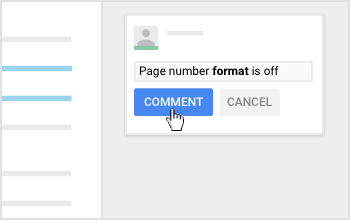
  3. In the comment box, enter # and then enter a keyword or phrase.
  4. Classroom’s suggestions autocomplete as you type.


5. To insert the comment, click the comment and then Comment.


Use only a hash
  1. Open a student assignment in the grading tool.
  2. Highlight text and click Add comment Add comment.
  3. In the comment box, enter only a hash #. The 5 most recently used comments appear.
Search
  1. Open a student assignment in the grading tool.
  2. Highlight the text and click Add comment Add comment.
  3. In the top-right corner, click Comment bank and then Search Search.

  1. Point to the comment you want to use and click More Moreand then Copy to clipboard.
  2. In the comment box, paste the comment.
  3. (Optional) Personalize the comment.
To make it easy to find comment, Classroom autocompletes content you enter after a hash #. As you enter the content, a list of matching comments appears. This list narrows as you enter more content.

Thursday, October 18, 2018

Feedback in Google Classroom

Comment Bank in Google Classroom makes it easier to provide feedback to students. Create your Comment Bank in under a minute with this quick video:

  • Teachers own their own Comment Banks, you will have the same Comment Bank to use for all your classes but your co-teachers will not have access.
  • Comment Banks are not shareable between teachers at this time.

Did you know?
If a student turns in an assignment, they won't be able to see the comments within a document until you return them.

Private Comments
Great for overall comments, these are added in Google Classroom but not viewable on the document or assignment itself.

Talk & Comment
Use Talk & Comment Google Chrome extension to create audio feedback for your students. Watch this minute long video to see how it works from a teacher and student perspective.


Video Feedback- Alice Keeler Webcam Record
Another Google Chrome extension! Webcam Record allows you record a short video, save to your Google Drive and copies a link to the video on your clipboard. Watch a 1:24 video tutorial to see how to set it up and use it with your students.


Saturday, October 6, 2018

Google Classroom Brings Back "To-do"!

In August Google removed the To-do pages from teachers and students Google Classroom. We'll it's back! It think students and teachers alike will be delighted about this. Just click on the 3 bar menu on the top left in Google Classroom and choose "To-do" for either the classes you are teaching or the classes you are enrolled in.


See this link for more information:


Wednesday, August 1, 2018

Google Classroom: Getting Started


      Get started using Google Classroom


Further information go to: Teacher Tech with Alice Keeler

       10 Things to Start with in Google Classroom

1. Create a class
2. Create an announcement
3. Invite Students
4. Create an assignment
5. View the Classroom folder
6. Click the Assignment Title
7. Provide feedback
8. Return work
9. Provide a link
10. Ask a question
  
To find out how to do these 10 things, go to: Teacher Tech with Alice Keeler


Wednesday, March 14, 2018

Google Classroom Intro


Google Classroom: Essentials


This graphic was created by Alice Keeler.
@alicekeeler

Please feel free to use this with teacher trainings, with students and in presentations. Please do NOT publish this publicly.